To establish secure API-based connectivity between a local Windows system and Oracle Cloud Infrastructure (OCI) using the OCI Command Line Interface (CLI) and IAM API signing keys, and to validate access through successful CLI-based OCI service queries.
-
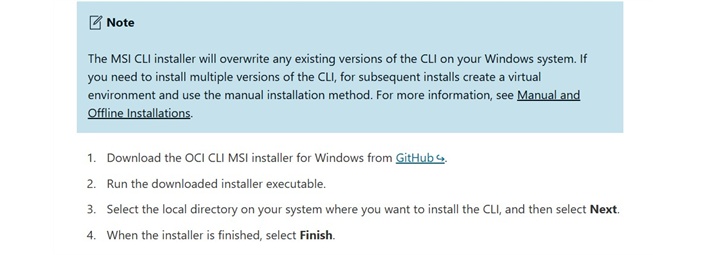
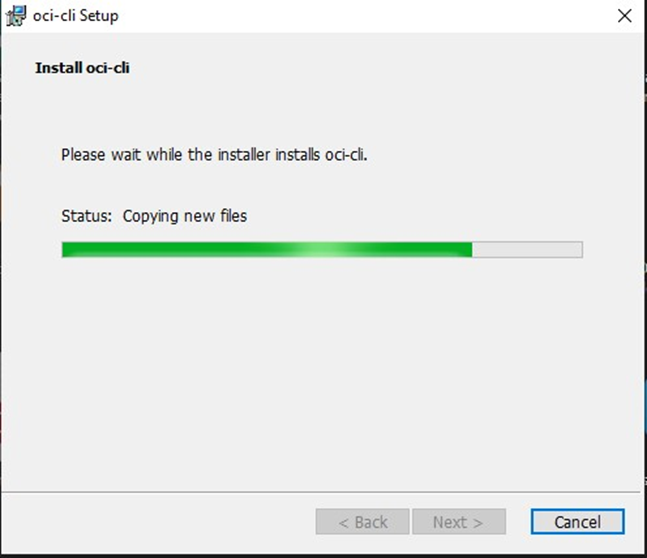
Installed OCI CLI using the official Windows MSI installer
-
Accepted default installation settings
-
Verified installation was successful

Step 6: Verify OCI CLI Installation
-
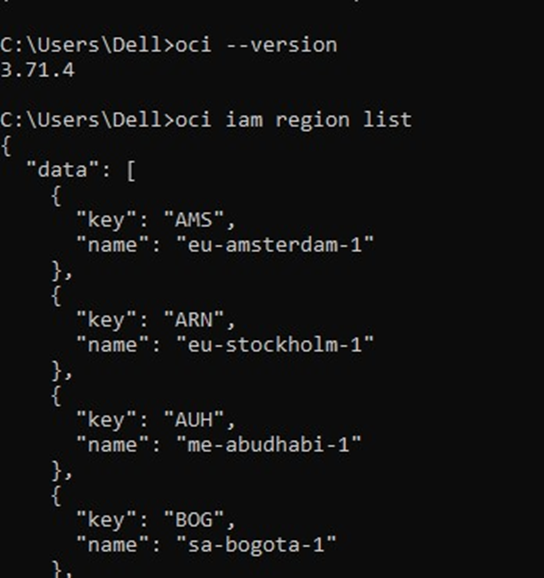
Executed the following command to confirm installation:
-
oci --version
-
The command returned the installed OCI CLI version successfully.
Step 7: Validate Connectivity Between Local System and OCI
-
Executed OCI IAM and tenancy-level commands to confirm authenticated connectivity:
Command: - oci iam region list
-
Additional validation:
Command: - oci iam compartment list --compartment-id <TENANCY_OCID> --all
-
This command lists all the instances in a compartment in tabular form: - oci compute instance list --compartment-id <COMPARTMENT_OCID> --query "data[].{Name:\"display-name\", State:\"lifecycle-state\", AD:\"availability-domain\"}" --output table
-
Successful responses confirmed:
-
OCI CLI authentication
-
IAM API signing key validation
-
Secure communication between local system and OCI services
Additional OCI CLI Commands for Exploration
-
List all compartments in the tenancy
command: - oci iam compartment list --compartment-id <tenancy_ocid> --all
-
Get details of the authenticated IAM user
command: - oci iam user get --user-id <user_ocid>
-
List availability domains in the region
command: - oci iam availability-domain list
-
List compute instances in a compartment
command: - oci compute instance list --compartment-id <compartment_ocid>
-
List Virtual Cloud Networks (VCNs)
command: - oci network vcn list --compartment-id <compartment_ocid>
-
Validate tenancy access
command: - oci iam tenancy get --tenancy-id <tenancy_ocid>
-
Show configured OCI CLI profiles
command: - oci setup config --list-profiles
-
Display active CLI configuration
command: - oci setup config –show
-
List block storage volumes
command: - oci bv volume list --compartment-id <compartment_ocid>
-
List Object Storage buckets
command: - oci os bucket list --compartment-id <compartment_ocid> --namespace-name <object_storage_namespace>
Result
-
OCI CLI successfully authenticated using IAM API signing keys and retrieved OCI service data, confirming secure and functional connectivity between the local Windows system and Oracle Cloud Infrastructure.
Key Learnings
-
Learned how OCI IAM uses public keys to authenticate API requests signed locally using a private
-
Learned how OCI CLI interacts with OCI services through IAM policies, not through the web console.
-
Validated real local system to OCI connectivity using signed REST API calls instead of UI-based access.
-
Validated end-to-end local system to OCI connectivity using CLI commands, confirming successful authentication, authorization, and service response.
Conclusion
-
This implementation demonstrates real, hands-on usage of OCI CLI, IAM authentication, and secure API-based interaction with Oracle Cloud Infrastructure. The task validates end-to-end connectivity.