How can we find the Gateway in OCI for IPv6 to add in FortiGate.
Working with IPv6 in OCI, where adding a simple static route on your FortiGate firewall seems very easy but it’s not that simple.
As is well known, IPv6 is required, but it creates an unusual network area where routers prefer to communicate next-hop using Link-Local Addresses (fe80::...) instead of the well-known Global IP.
What is the great confusion in OCI? That quiet VCN Virtual Router (your real next-hop) won't let you just view its Link-Local IP. We reached a block trying to set the static route, understanding we couldn’t just estimate the next-hop location.
Did you know the answer to solving this networking difficulty includes a Link-Local IP by finding the MAC Address of the OCI router interface and executing a little of EUI-64 hex.
I have mentioned the complete solution, including the strange phases of MAC address looking in OCI and the strange 7th-bit conversion for your FortiGate static route, is documented just above.
Keep scrolling to unlock the complete OCI IPv6 pathway!
This post will walk you through configuring IPv6 in Oracle Cloud Infrastructure (OCI) to host a website utilizing a public load balancer, a FortiGate firewall with an IPv6 interface.
1. Prerequisites
Before proceeding, ensure you have the following:
- An active OCI tenancy with administrative privileges.
- A public load balancer already deployed or ready to be created.
- A FortiGate firewall instance running in OCI with IPv6 support.
- Appropriate permissions to manage VCN (Virtual Cloud Network), Subnets, and Security Lists.
2. Enable IPv6 on Your VCN
- Navigate to Networking > Virtual Cloud Networks in OCI console.
- Select the VCN hosting your website.
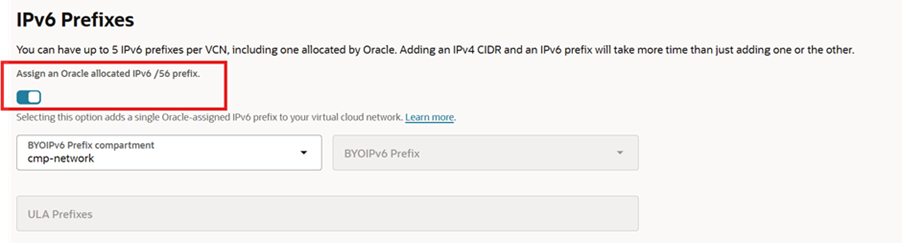
- Go to “IP Administration” and click on “Add CIDR Blocks/Prefixes”
- Check the “Assign an Oracle allocated IPv6 /56 prefix.”
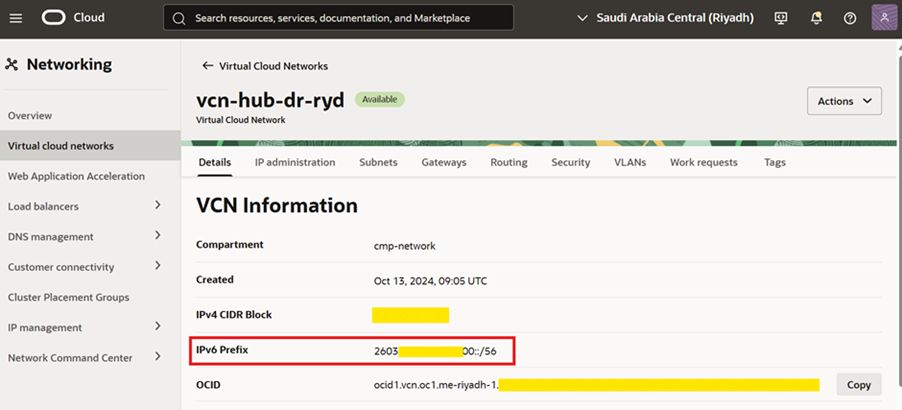
5. After enabling, you will see the following on VCN page IPv6 Prefix.
3. Configure IPv6 Subnet
- In the same VCN, create or edit an existing subnet to enable IPv6.
- Go to “IP Administration” and click on “Add CIDR Blocks/Prefixes”
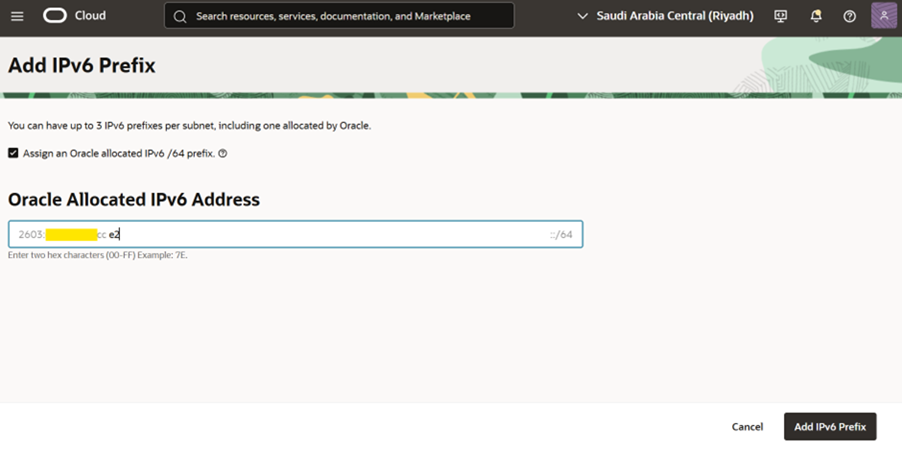
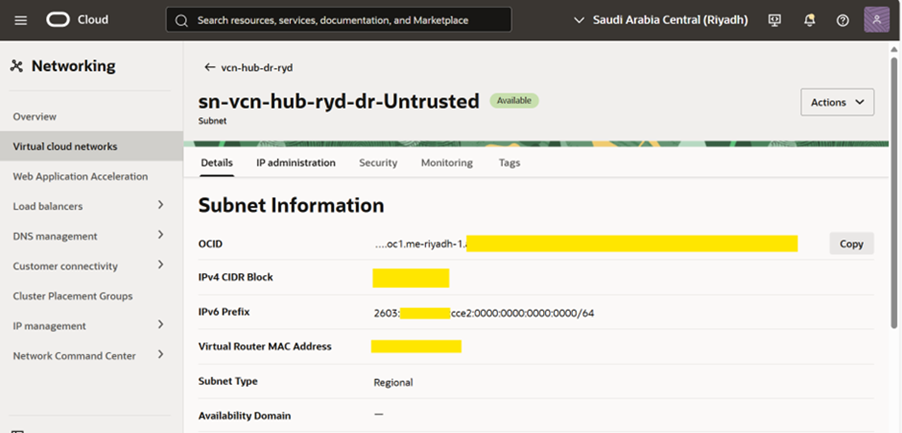
- Click on “Add IPv6 Prefix”. Enter any two hex character an shown in screenshot.
4. An IPv6 Prefix is created.
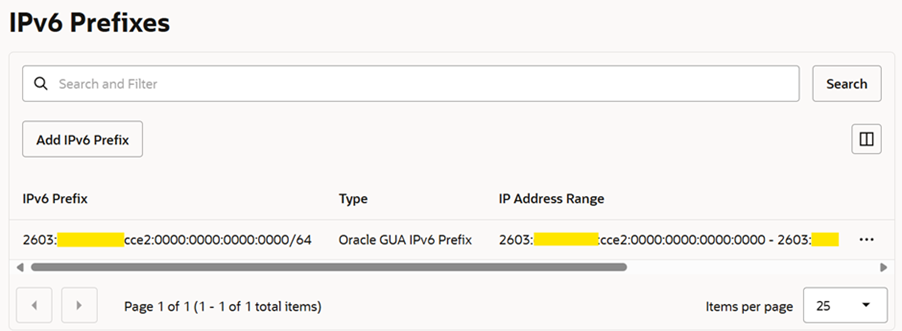
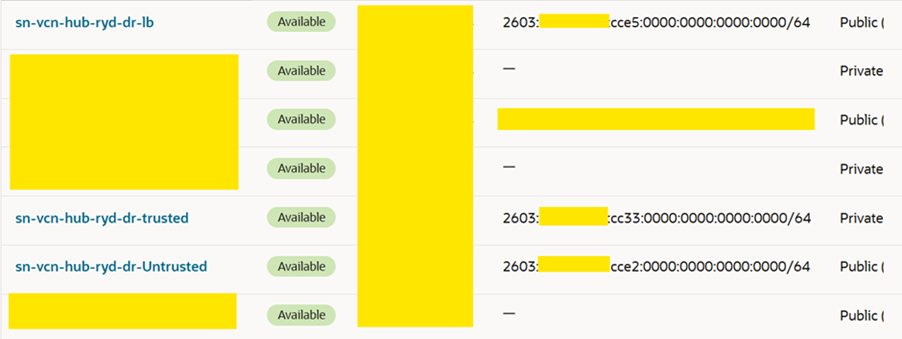
5. Do the same steps for trusted and Load Balancer subnet.
4. Configure IPv6 in FortiGate Firewall OCI Console
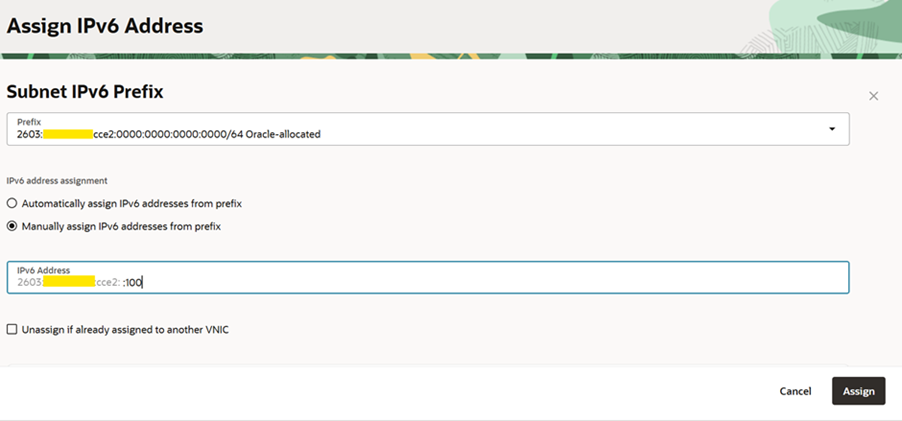
Go the FortiGate firewall compute instance in OCI and assign IPv6 Address for Untrust and Trust interface. In the screenshot only Untrusted is shown. Do the same steps for Trusted FortiGate interface as well in OCI.
- Log in to FortiGate Web Interface
- Go to System Settings
Navigate to: System > Feature Visibility.
Enable IPv6 (if not already enabled).
Click Apply.
- Configure IPv6 on an Interface
Go to: Network > Interfaces.
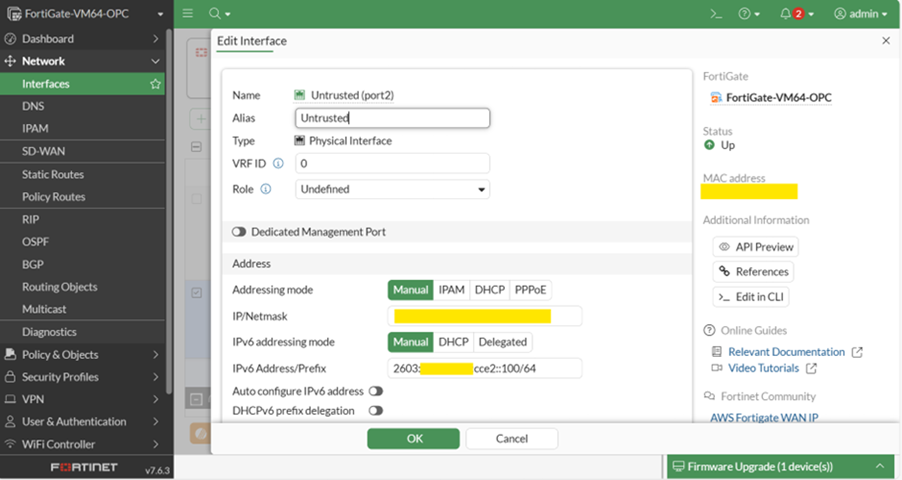
Edit the interface where you want IPv6 enabled (e.g., Untrusted and Trusted).
- Under IPv6 Settings, enable IPv6.
- Navigate to Network > Interfaces.
- Assign an IPv6 address:
Manual: Enter the IPv6 address and prefix length as shown in screenshot below (e.g., 2603:XXXX:YYYY::100/64).
8. Enable HTTP, HTTPS and PING.
Press enter or click to view image in full size

9. **Do the same for Trusted Interface.
5. Configure OCI Public Load Balancer with IPv6
- Navigate to Networking > Load Balancers.
- Create public load balancer with IPV6.

6. Update Security Lists.
- Go to your subnet’s Security Lists.
- Add ingress rules to allow IPv6 traffic:
- Source CIDR: ::/0
- Protocol: TCP
- Ports: 80 (HTTP) and 443 (HTTPS)
3. Add egress rules for IPv6 traffic as well.
7. Update the Internet gateway route table for IPv6
- Go to internet gateway in HUB VCN and edit the attached route table to Internet gateway. Add the route as
- Destination: 2603:XXXX:YYYY:cce5::/64 (Load Balancer subnet IPv6)
- Target: 2603:XXXX:YYYY:cce2::100 (Untrusted FortiGate Interface IPv6)
- Target type: IPv6 Address
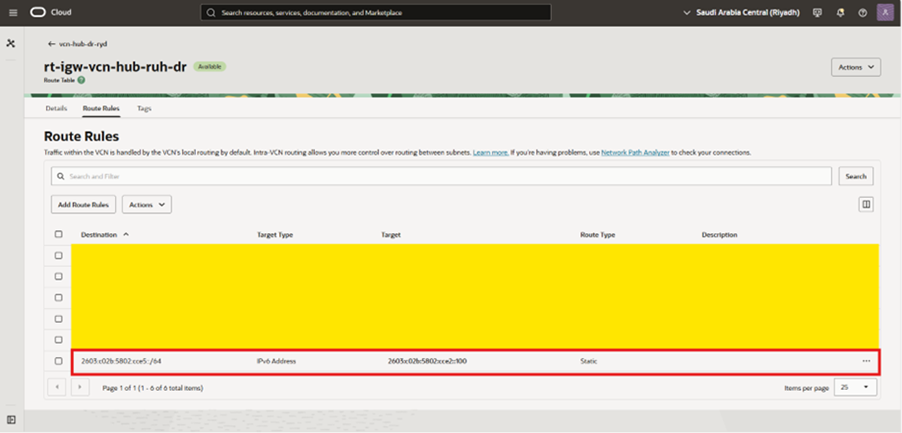
This way any IPv6 traffic coming from Internet will go to FortiGate IPv6 private IP first and then to Load Balancer
8. Configure static routes and Policies in FortiGate firewall
- Before logging in to FortiGate, we need to first retrieve the Gateway IPv6 IP of the subnet which will be defined in the static routes.
- ***The process to retrieve the gateway IP is very important because this is the core part of all the routing. If you miss this part then your whole traffic of IPv6 will not work. The process is as follows.
- Login to OCI and retrieve the subnet IPv6 MAC Address as shown below of Untrusted subnet
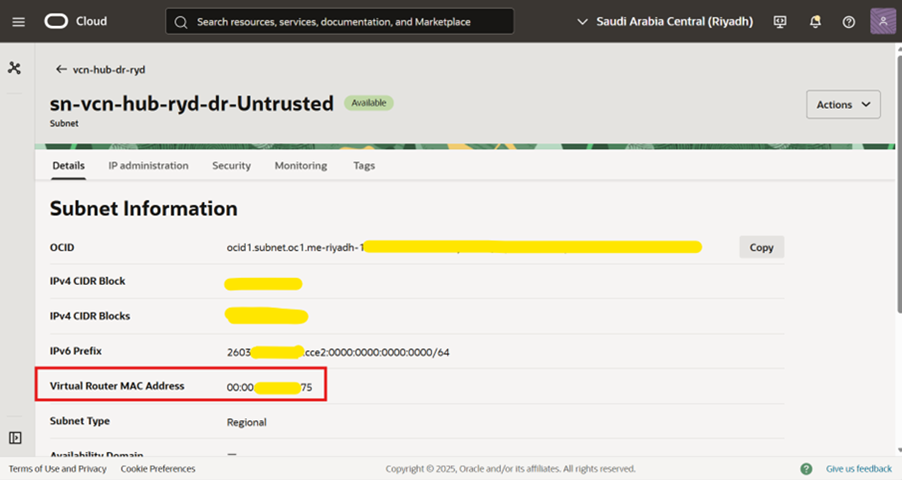
4. Copy the MAC Address in notepad.
5. Search any tool in browser as MAC to IPv6 converter. I am using https://nettools.club/mac2ipv6.
6. Paste the MAC address and you will get a IPv6 Link Local Address starting with “fe…”
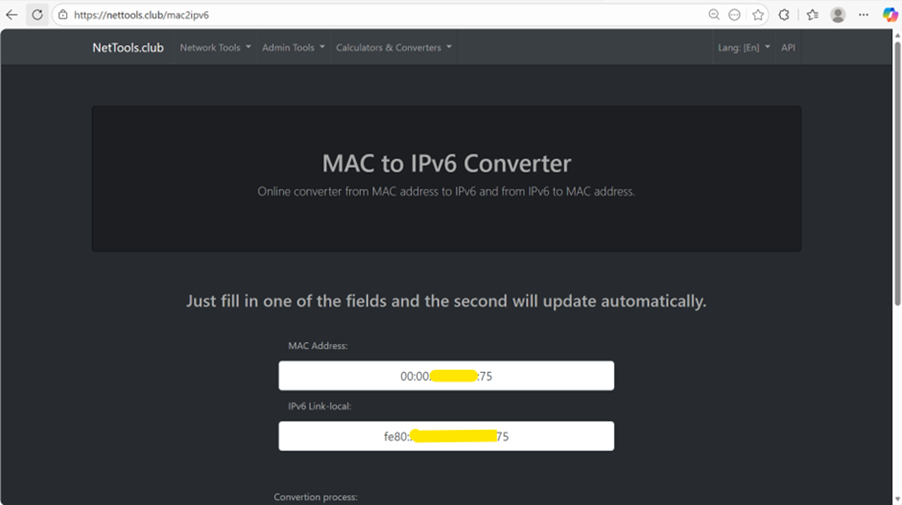
7. Copy the IPv6 Link Local Address in notepad.
8. Do the same for Trusted subnet as well. Now you have Two IPv6 Link Local Addresses.
9. Login to FortiGate firewall and go to static routes section. You will find the IPv4 and IPv6 tab above as shown in screenshot.
10. Create two routes using two IPv6 Link Local Addresses. Incoming traffic going to Load balancer subnet via trusted Interface and Outgoing traffic via untrusted interface.
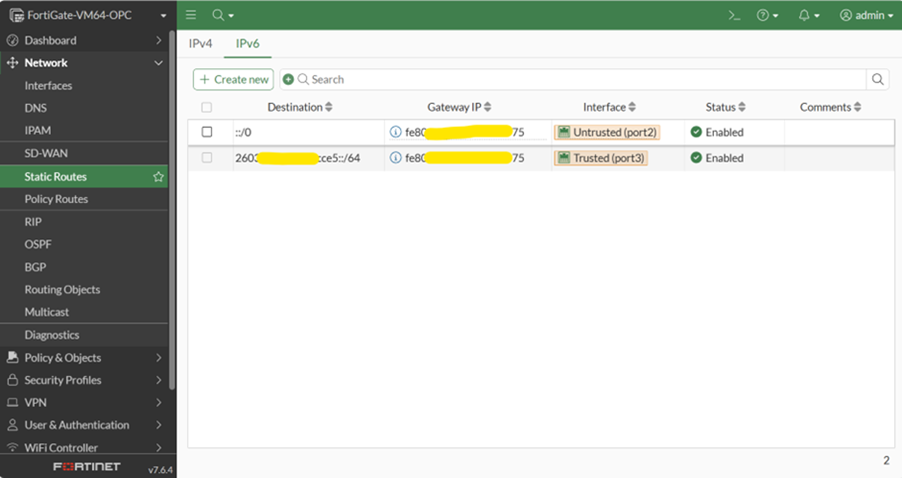
11. Create a Firewall policy of IPv6 incoming all from Internet to Load balancer Subnet. (Untrusted to Trusted Policy) only HTTP, HTTPS.
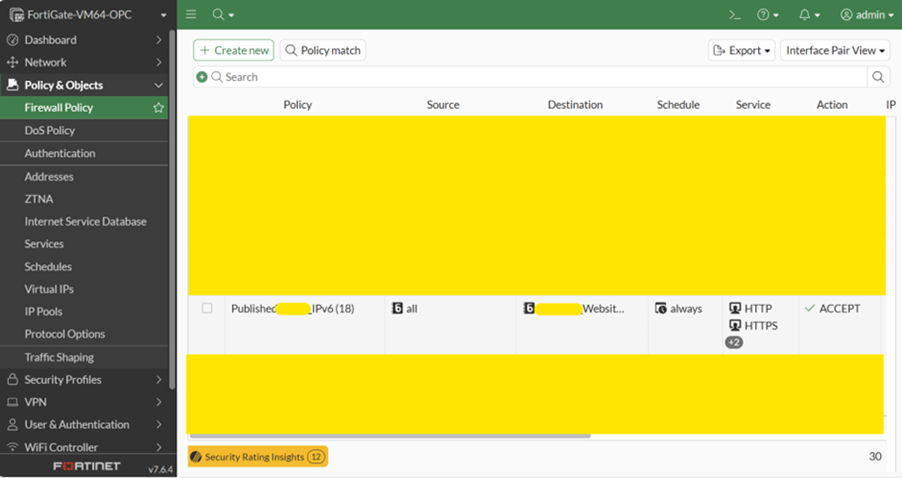
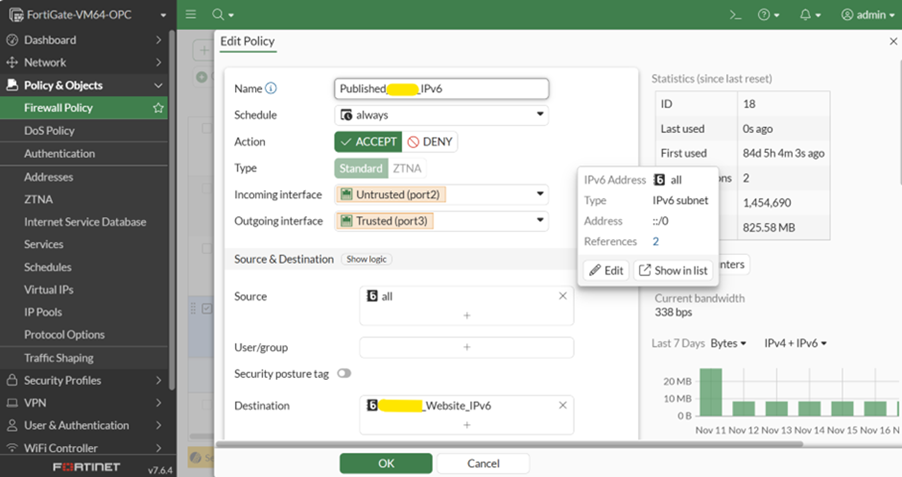
12. Save the policy and now we are completed with the configuration.
9. Create DNS AAAA record for your website.
- Login to OCI and open your public zone where the records are published.
- Create an AAAA record of the URL pointing to the IPv6 as shown below.

3. Verify the published records using NSLOOKUP.
10. Final Checklist
- IPv6 enabled for VCN and subnets.
- FortiGate firewall IPv6 interface configured.
- Static routes created in FortiGate using IPv6 Local Link Address
- FortiGate Policies created for IPv6
- Security lists and Route tables updated for IPv6.
- DNS AAAA record created
- Verify the connectivity.
By following these steps, you can successfully configure IPv6 in Oracle Cloud Infrastructure for a public-facing website using a load balancer and FortiGate firewall, ensuring modern, scalable, and secure internet access.
IPv6 Success Story
Hope this summary helped clarify why your FortiGate and OCI were playing hard to get! Now that you’ve mastered the dark art of EUI-64 conversion and found out how to handle those invisible Link-Local Gateways, you’re well on your way to becoming an IPv6 Cloud Expert.