In this blog, we will look at an example of
- A simple Oracle NoSQL based application,
- Use Oracle Developer Cloud to pack it as a Docker image and push it to registry (Docker Hub in this case)
- Run (and scale) it on Oracle Container Cloud
Overview
Docker & Oracle Developer cloud
Oracle Developer Cloud provides support for Docker via a specialized Docker Build plugin – details here
- You can build Docker images of your application as a part of your continuous integration by creating an equivalent Build Job
- Push the Docker image for it to be useful for other parts of your pipeline or external systems
More on this in the upcoming section
Oracle NoSQL
Write 2-3 points about oracle nosql.. point to doc
The sample application
The application used for demonstration purposes is quite simple
- Exposes a REST endpoint (using Jersey) on top of Oracle NoSQL database
- Allows you to fetch and create key-value pairs using the REST endpoint(s)
- It’s packaged in the form of a uber (fat) JAR
- Contains a Dockerfile to build a Docker image
We will take this application from the local machine and deploy to an external Docker Registry (e.g. Docker Hub) with just a git push command, thanks to Oracle Developer Cloud service
Oracle Container Cloud
Write 2-3 points about oracle nosql.. point to doc. Mention what role its playing
Oracle Developer cloud
Let’s look at how to configure Oracle Developer Cloud Service
Private Build VMs
Point to existing blog section
After the Docker tooling is setup, we can proceed with our project, build (CI) and continuous delivery (CD) setup
- Project & code repository creation – Point to existing blog section
- Configure source code in Git repository - Point to existing blog section
Build Steps configuration
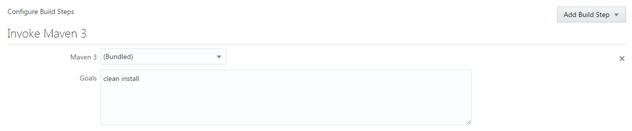
Maven build: this will produce the artifact – in this case it’s a (fat) JAR file
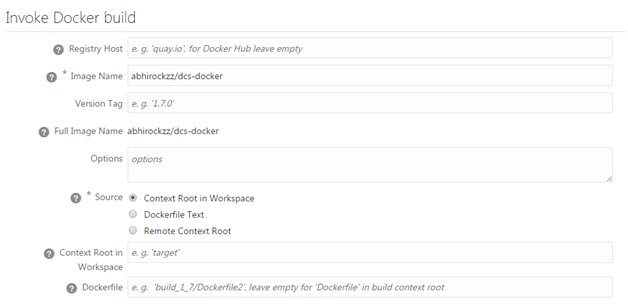
Docker build: uses the Dockerfile included in the source code
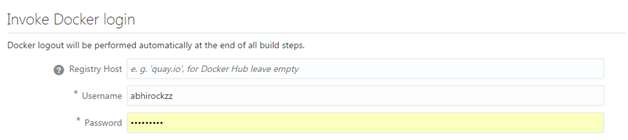
Docker login: provide credentials for the Docker registry (Docker Hub in this example) where the image needs to be pushed to
Docker push: the operation which will push the image binary to the configured repository
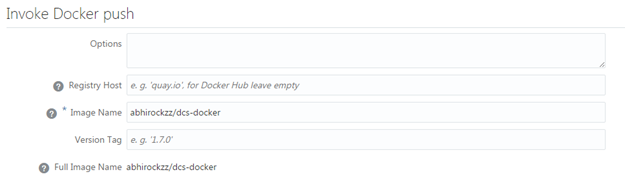
To summarize, we now have a Continuous Integration setup which can take us from our Java application, built into a (fat) JAR, packaged into to a Docker image and pushed to Docker Hub
Initial build
Trigger the first build manually
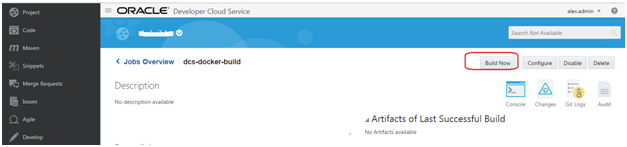
Wait for the build to complete and check the registry (Docker Hub) to confirm that the image was pushed (example below)

Oracle Container Cloud
Go through setup – try to keep it brief, reuse existing blog links
Continuous Deployment from DCS to OCCS
Show how to setup CD using OCC webhook from dcs
Test your setup
Update the code (RESTResource.java file) and execute the below mentioned Git commands
cd <project_dir> //e.g. cd c:\cloud\dcs\dcs-docker
git commit -m “commit message” src\main\java\com\oracle\cloud\devcs\docker\RESTResource.java
git push <devcs_repo>/dcs-docker.git refs/heads/master:refs/heads/master (enter your Developer Cloud Service credentials when prompted)
//e.g. git push https://john.doe@developer.us.oraclecloud.com/developer007-foodomain/s/developer007-foodomain-project_2009/scm/kehsihba.git//john.doe@developer.us.oraclecloud.com/developer007-foodomain/s/developer007-foodomain-project_2009/scm/kehsihba.git refs/heads/master:refs/heads/master
Developer Cloud service build will get triggered automatically and ultimately push the updated application image to Docker Hub