We will look at
- How to Setup Apache Cassandra on Oracle Compute Cloud
- Develop: some implementation details
- Deploy: Run it on Oracle Application Container Cloud using CI/CD feature in Oracle Developer Cloud
- Secure access: secure channel b/w your application and Cassandra

Hello Cassandra
Apache Cassandra is an open source, NoSQL database. It's written in Java, (originally) developed at Facebook and it's design is based on/inspired by Amazon's Dynamo and Google’s Bigtable. Some of its salient characteristics are as follows
- Belongs to the Row-oriented family (of NoSQL databases)
- Distributed, decentralized & elastically scalable
- Highly available & fault-tolerant
- Supports Tunable consistency
You can read more about Cassandra here
About the sample application
- The sample application exposes REST endpoints - implemented using Jersey (JAX-RS)
- Employee - serves as the domain object. You would need to bootstrap the required table
- DataStax Java driver is used to interact with Cassandra
- Leverages Cassandra object mapper for CRUD operations
It is available here
Locking down access to Cassandra
The goal is to allow exclusive access to Cassandra from our application without exposing it's port (e.g. 9042) to the public internet. To enable this, Oracle Application Container Cloud ensures that when you deploy an application, a Security IP list is automatically generated which can be added to a Security rule for a virtual machine (VM) in Oracle Compute Cloud Service. This allows your application and the VM to communicate.
The setup details are discussed in an upcoming section
Setup Cassandra on Oracle Compute Cloud
Quick start using Bitnami
We will use a pre-configured Cassandra image from Bitnami via the Oracle Cloud Marketplace
- Login to your Oracle Compute Cloud dashboard,
- choose the Create Instance wizard, and then
- select the required machine image from the Marketplace tab
More details here
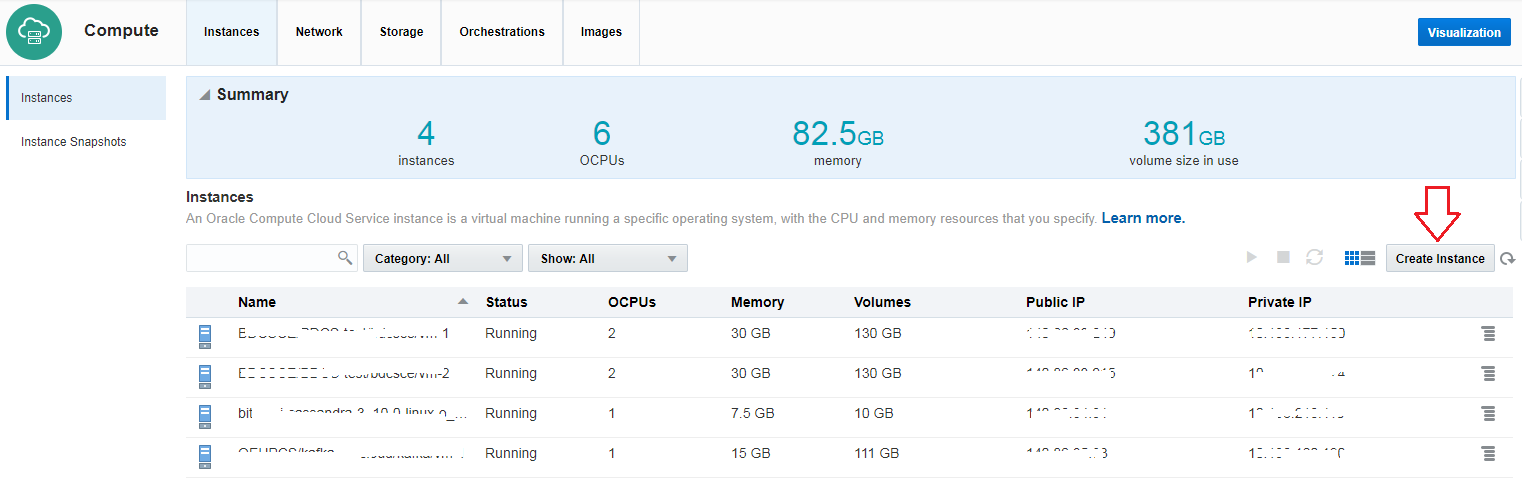
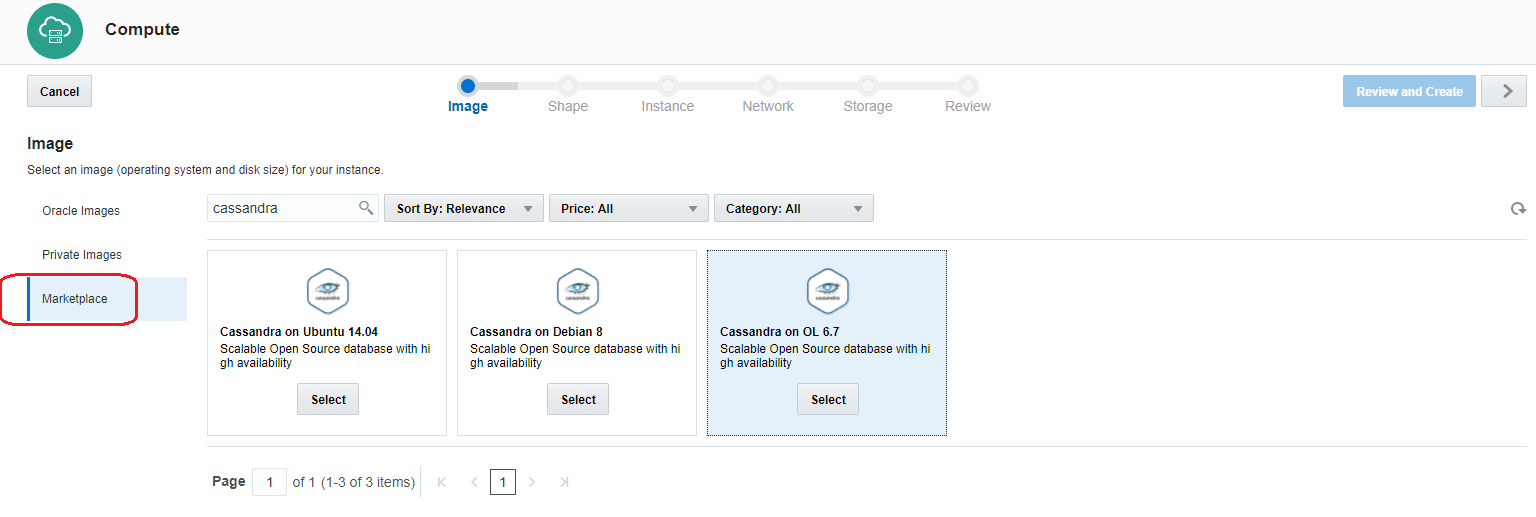
Activate SSH access
We now need to allow SSH connections to our Cassandra virtual machine on Oracle Compute cloud
Create a Security Rule
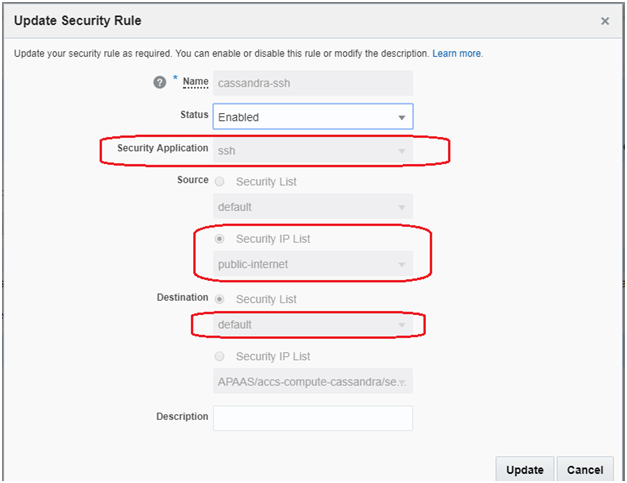
You should see it in the list once its done

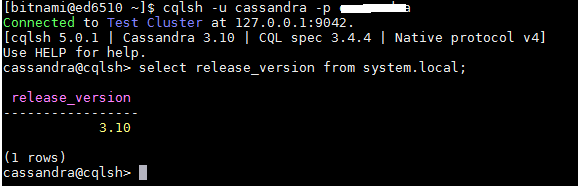
SSH into the VM
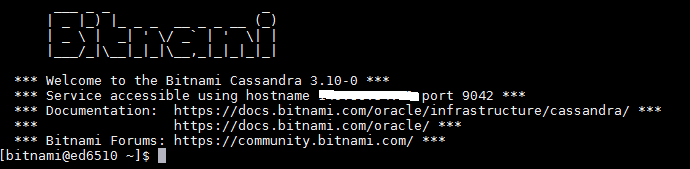
Reset password
You will need to reset Cassandra password as per this documentation https://docs.bitnami.com/oracle/infrastructure/cassandra/#how-to-reset-the-cassandra-administrator-password. Once you're done, log in using the new credentials
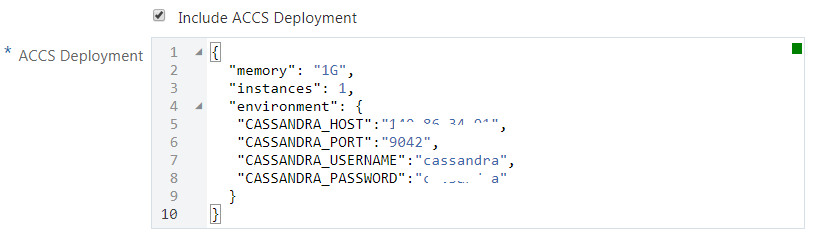
Oracle Developer Cloud: setup & application deployment
You would need to configure Developer Cloud for the Continuous Build as well as Deployment process. You can refer to previous blogs for the same (some of the details specific to this example will be highlighted here)
References
Provide Oracle Application Container Cloud (configuration) descriptor
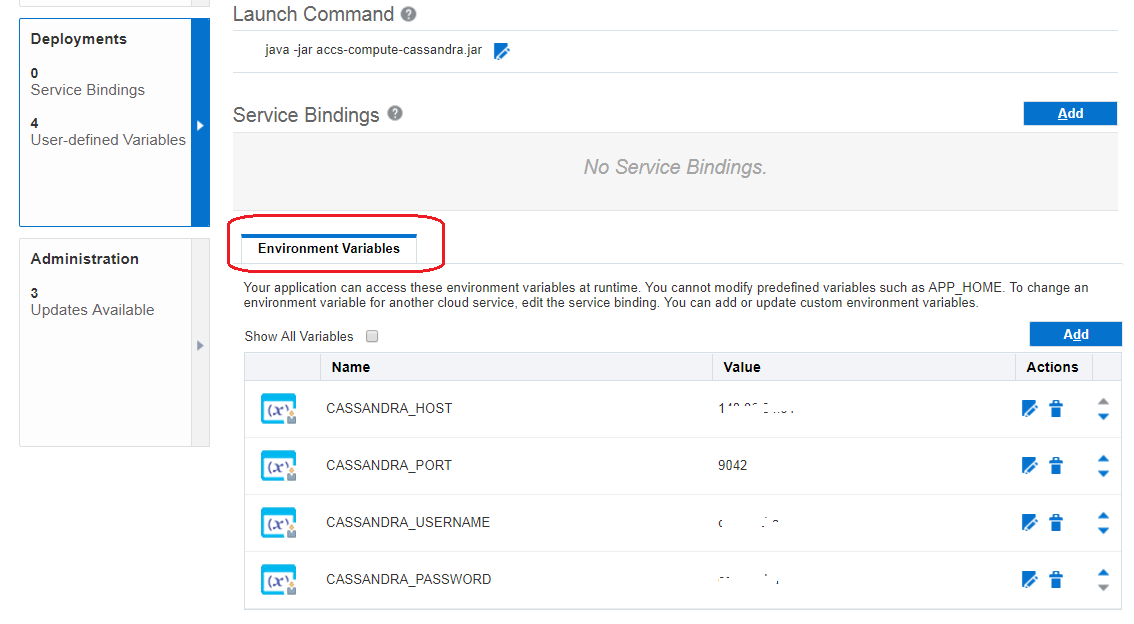
Check application details on Oracle Application Container Cloud
Deployed Application

Environment Variables
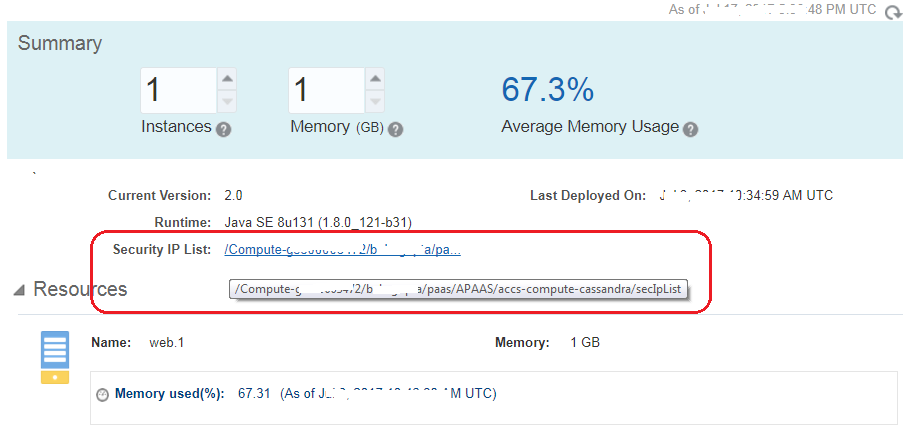
Check Security IP List
After successful deployment, you will be able to see the application as well the Security IP List information in Oracle Application Container Cloud
Please note that you will not be able to access/test the application now since the secure communication channel b/w your application and Cassandra is not setup. The next section covers the details
Oracle Compute Cloud security configurations
Confirm Security IP List
You will see the Security IP list created when you had deployed the application on Oracle Application Container cloud (mentioned above). It ensures that the IP of the application deployed on Oracle Application Container cloud is whitelisted for accessing our Cassandra VM on Oracle Compute Cloud

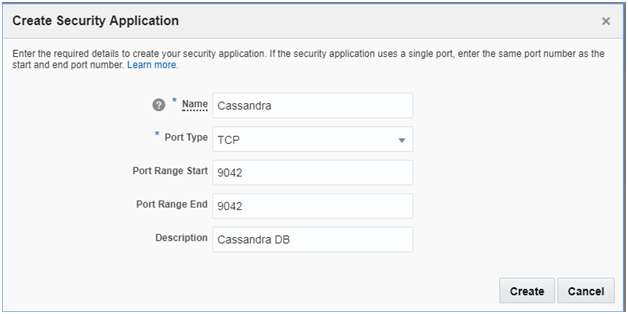
Create Security Application
This represents the component you are protecting along with its access type and port number - in this case its TCP and 9042 respectively
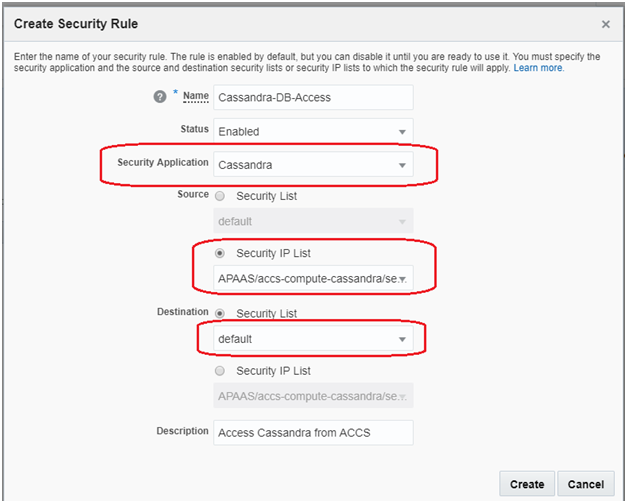
Create Security Rule
The default Security list is created by Oracle Compute Cloud (after the Bitnami image was provisioned)

We will create a Security Rule to make use of Security IP list, Security application and Security List
You should see it in the list of rules

Test the application
Bootstrap the keyspace and table
The sample application uses the test keyspace and a table named employee - you would need to create these entities in the Cassandra instance
CREATE KEYSPACE test
WITH REPLICATION = {
'class' : 'SimpleStrategy',
'replication_factor' : 1
};
CREATE TABLE test.employee (emp_id uuid PRIMARY KEY, name text);
Access REST endpoints
Create a few employees
curl -X POST <ACCS_APP_URL>/employees -d abhishek // 'abhishek' is the name
curl -X POST <ACCS_APP_URL>/employees -d john // 'john' is the name
- You will receive HTTP 201 (Created) in response
- The Location (response) header will have the (REST) co-ordinates (URI) for the newly created employee record - use this for search (next step)
Search for the new employee
curl -X GET <ACCS_APP_URL>/employees/<emp_id>
You will receive a XML payload with employee ID and name
<?xml version="1.0" encoding="UTF-8" standalone="yes"?>
<employee>
\<empId>18df5fd1-88d8-4820-984e-3cf0293c3051\</empId>

\<name>test1\</name>
</employee>
Search for all employees
curl -X GET <ACCS_APP_URL>/employees/
You will receive a XML payload with employees info
<?xml version="1.0" encoding="UTF-8" standalone="yes"?>
<employees>
\<employee>

    \<empId>8a841167-6aaf-428f-bc2b-02269f04ce93\</empId>

    \<name>abhirockzz\</name>

\</employee>

\<employee>

    \<empId>2e2cfb3c-1530-4099-b6e9-a550f11b25de\</empId>

    \<name>test2\</name>

\</employee>

\<employee>

    \<empId>18df5fd1-88d8-4820-984e-3cf0293c3051\</empId>

    \<name>test1\</name>

\</employee>

\<employee>

    \<empId>2513a12d-5fc7-4bc6-9f94-d13cea23fe7a\</empId>

    \<name>abhishek\</name>

\</employee>
</employees>
Test the CI/CD flow
Make some code changes and push them to the Developer Cloud service Git repo. This should
- Automatically trigger the build, which once successful will
- Automatically trigger the deployment process, and
- Redeploy the new application version to Application Container Cloud
**The views expressed in this post are my own and do not necessarily reflect the views of Oracle.