**Chapter 1—Introducing the DataMask Utility**
Purpose
This tool will mask all personally identifiable information in the PLM for Process database.
Note: DO NOT RUN THIS ON THE LIVE DATABASE!
Restore a backup of the database and run this tool on the backup DB.
Dependencies
.NET Framework 4.6
Oracle Data Access Components (ODAC) with TNS configured [Only if masking an Oracle database]
Chapter 2—Configuring of the DataMask Utility
Masking rules are configured and can be modified in DataMask.exe.config.
The default rules are recommended and will mask all personally identifiable information.
MaskField
A MaskField have three properties.
<MaskField fieldName="users.FirstName" maskType="Random" maskValue="FirstName"></MaskField>
fieldName used to specify a column of a table. Format is <TableName>.<ColumnName>.
maskType used to specify a kind of optional maskType.
maskValue used to mask field with the value.
Mask Types
It supports six types: GenericUnique, FixedString, Random, Password, Passphrase and Truncate for a MaskField.
Config Sample:
<MaskRules>
\<MaskField fieldName\="users.UserName" maskType\="GenericUnique" maskValue\="User"\>
</MaskField>
This rule will replace users.userName with a unique value generated by adding a sequential number to the string "User"
For example : User1, User2, User3, etc.
<MaskField fieldName="users.FirstName" maskType="Random" maskValue="FirstName"></MaskField>
This rule will replace users.FirstName with a randomly selected name from the first name list. The list values are come from <P4P_DataMask_Home>\NameFiles\FirstNames.txt.
The maskValue options are "FirstName", "LastName", "FullName".
<MaskField fieldName="users.Phone" maskType="FixedString" maskValue=" "></MaskField>
This rule will replace users.Phone with " ".
The maskValue specifies what string will be used to update the field.
<MaskField fieldName="users.Password" maskType="Password" maskValue=""></MaskField>
     This rule will generate a new password for each record in the users table.

     This rule is specific to the PLM4P database.
<MaskField fieldName="users.Passphrase" maskType="Passphrase" maskValue=""></MaskField>
     This rule will generate a new Passphrase for each record in the users table.

     This rule is specific to the PLM4P database.
<MaskField fieldName="Person" maskType="Truncate" maskValue=""></MaskField>
This rule will truncate the Person table. This type should only be used for deprecated tables.
Mask Conditions
There are two type condition: Exclusions and Inclusions. Except truncate mask type, all others mask types can be allowed to add exclusions or inclusions condition.
Exclusions can be configured so that specific records in the table are not masked. It can use "|" to separate multi-specific values.
Inclusions can be configured so that specific records in the table are masked. It can use "|" to separate multi-specific values.
Note: Only one type of policy (Exclusions or Inclusions) can be allowed in the config file.
In this example, the records where UserName = 'prodikaadmin' OR UserName='system' will be excluded from the UserName masking.
...
<MaskField fieldName="users.UserName" maskType="GenericUnique" maskValue="User">
 \<Exclusions\>

      \<ExcludeRecord id\="1" columnName\="UserName" value\="prodikaadmin|system"/>

 \</Exclusions\>
</MaskField>
...
In this example, the records where UserName = 'prodikaadmin' OR UserName='system' will be UserName masked.
...
<MaskField fieldName="users.UserName" maskType="GenericUnique" maskValue="User">
 \<Inclusions\>

      \<IncludeRecord id\="1" columnName\="UserName" value\="prodikaadmin|system"/>

 \</Inclusions\>
</MaskField>
Default Config file
Default config file (DataMask.exe.config) is only exclude prodikaadmin and system when mask users.UserName.
Customer can only mark one or more specified users’ information by using inclusion condition. Please see sample config file: DataMask.exe.config_inclusions. Customer can replace placeholder User#1_PKID and User#2_PKID with specified user PKIDs.
…
<MaskField fieldName="users.UserName" maskType="GenericUnique" maskValue="User">
<Inclusions>
\<IncludeRecord id\="1" columnName\="PKID" value\="User#1\_PKID|User#2\_PKID"/>
</Inclusions>
</MaskField>
<MaskField fieldName="users.FirstName" maskType="Random" maskValue="FirstName">
<Inclusions>
\<IncludeRecord id\="1" columnName\="PKID" value\="User#1\_PKID|User#2\_PKID"/>
</Inclusions>
</MaskField>
<MaskField fieldName="users.LastName" maskType="Random" maskValue="LastName">
<Inclusions>
\<IncludeRecord id\="1" columnName\="PKID" value\="User#1\_PKID|User#2\_PKID"/>
</Inclusions>
</MaskField>
<MaskField fieldName="users.jobTitle" maskType="FixedString" maskValue=" ">
\<Inclusions\>

  \<IncludeRecord id\="1" columnName\="PKID" value\="User#1\_PKID|User#2\_PKID"/>

\</Inclusions\>
</MaskField>
….
Chapter 3—Usage of the DataMask Utility
Requirements to run DataMask Utility
- Restore backup of database
- Need DB User with permissions to update records, create/drop tables, truncate tables
Steps to run DataMask Utility
Run <P4P_Home>\Apps\DataMaskUtil\DataMask.exe.
Process results will be logged with any errors in /logs/DataMask.log.
-
Getting Started UI
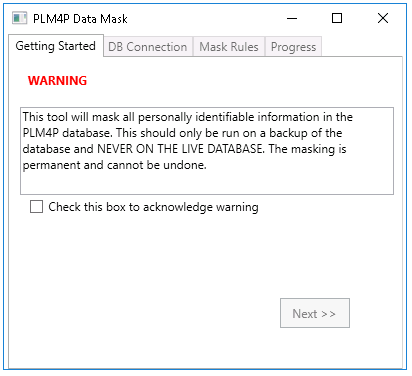
Only check “Check this box to acknowledge warning”, “Next>>” will be enabled.
User can use SQL Server or Oracle according to mask DB type. After input DB’s connection parameters, click “Test Connection” button. If test connection succeed, “Next>>” button will be enabled.

If both ExcludeRecords and IncludeRecords exist in the config, it will display warning message and disable “Start>>” button. Otherwise, it will list all needed masked fields.

Important Note: Once the mask is done, you can no longer undo it. Please make sure you have backed up your database before click ‘Start>>’.
After clicked “Start>>” button, it will mask all list fields. When progressing, it will display masked records count and “Processing, Please waiting…” message. After progress finished, it will display “Process Complete” message.

Note: if you close the tool when it’s still in processing, it will stop the mask right away, for those records already been masked, you can no longer undo. For those records not been masked, you can re-run the tool.

Chapter 4—Example of the DataMask Utility
Example of Exclusions: Mask Supplier Contact Information
DataMask.exe.config file for exclusions example

spSupplierReps table data before masked

spSupplierReps table data after masked

In the exclusions example, it masked below column values in spSupplierReps table.
- Name column used GenericUnique type. Name column values will be replaced with string “Supp” plus unique number, like Supp90, Supp92 etc. Name rc1 and Name zhu are not be masked because they are in exclusions condition.
<MaskField fieldName="spSupplierReps.Name" maskType="GenericUnique" maskValue="Supp">
<Exclusions>
      \<ExcludeRecord id\="1" columnName\="Name" value\="rc1|zhu"/>

    \</Exclusions\>
</MaskField>
- FirstName and LastName values are replaced with random names in FirstNames.txt file and LastNames.txt file. The two files can be modified by customers.
<MaskField fieldName="spSupplierReps.FirstName" maskType="Random" maskValue="FirstName"></MaskField>
<MaskField fieldName="spSupplierReps.LastName" maskType="Random" maskValue="LastName"></MaskField>
- Password, Passphrase, CellPage, JobTitle and Email values are replaced with specified strings.
<MaskField fieldName="spSupplierReps.Password" maskType="FixedString" maskValue=""></MaskField>
<MaskField fieldName="spSupplierReps.Passphrase" maskType="FixedString" maskValue=""></MaskField>
<MaskField fieldName="spSupplierReps.CellPage" maskType="FixedString" maskValue=" "></MaskField>
<MaskField fieldName="spSupplierReps.JobTitle" maskType="FixedString" maskValue=" "></MaskField>
<MaskField fieldName="spSupplierReps.Email" maskTyp