APEX 24.2 introduced support for positioning page items in the Edit slot, providing the long-requested ability to locate controls in the region title bar. Unfortunately there appear to be various problems with the implementation of this.
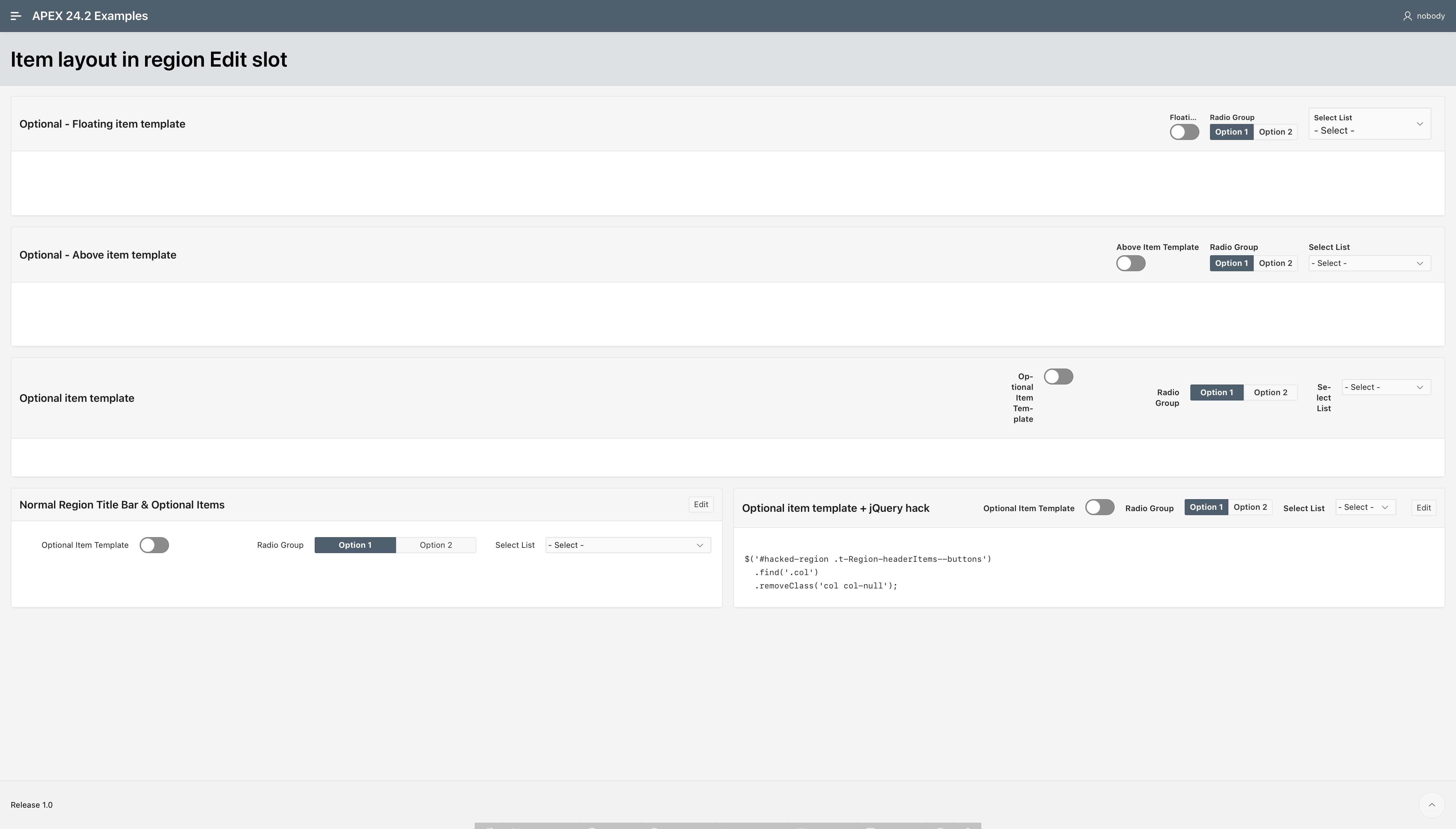
- Label Font Weight
- Labels are shown as bold text, which is inconsistent with the normal weight rendered in other slots.
- This is due to the
.t-Form-label CSS rule, which specifies the font weight using a variable expression var(--ut-field-label-font-weight). However, the --ut-field-label-font-weight variable does not actually have a value initially defined, meaning that the font weight is inherited as var(--a-base-font-weight-semibold, 500) from the .t-Region-header ancestor rule.
- Desired fix: Theme CSS change to specify a default weight on the
.t-Form-label rule var(--a-base-font-weight-semibold, 400)
- Workaround: Set
--a-base-font-weight-semibold value in Theme Roller or page CSS: :root { --ut-field-label-font-weight: 400; }
- Floating Item Templates
- Labels on items using Floating item templates are not fully visible, being truncated to the width of the item. This is not helpful to the user.
- Optional/Required Item Templates
- Item labels are squeezed into minimal widths—even with forced breaks within words—resulting in them being difficult to read and increasing the height of the item, conflicting with the original reason for positioning the item(s) in that slot, which is usually to conserve vertical space elsewhere.
- I have been unable to unpick all of the CSS responsible for this to identify a global CSS fix/workaround.
- Workaround: Brute force jQuery to remove the classes causing the unwanted layout from the region
$('#hacked-region .t-Region-headerItems--buttons')
  .find('.col')
  .removeClass('col col-null');